
How to Transcribe Voice Memos to Text: A Complete Guide
Voice memos are one of the fastest ways to capture a thought before it disappears. You can record a meeting takeaway, a client idea, an interview answer, a lecture point, or a reminder while you are on the move.
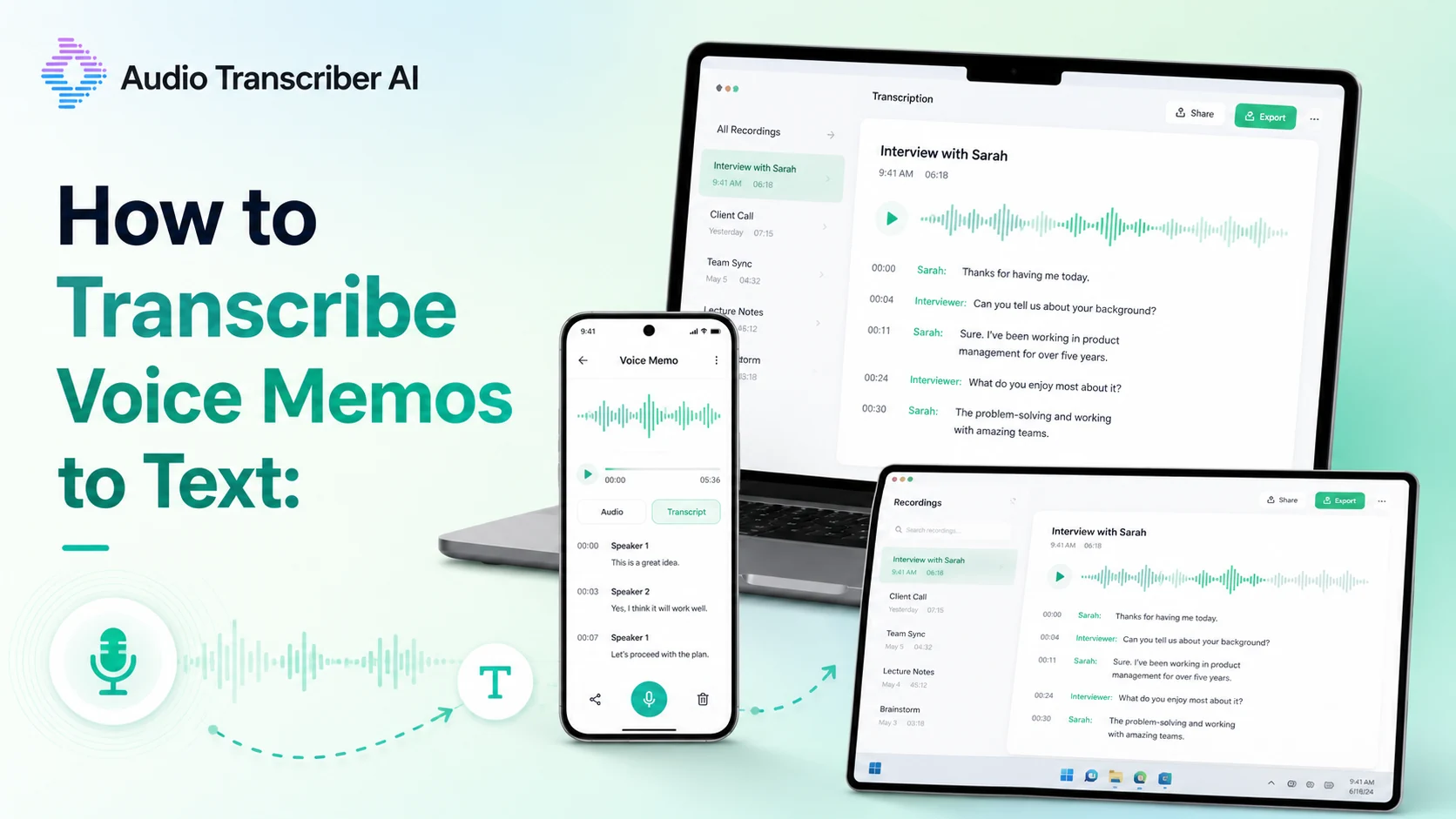
The challenge comes later. Audio is not easy to skim, search, quote, or turn into a task list. When you transcribe voice memos to text, those recordings become usable notes you can edit, organize, share, and reuse.
The simplest approach is usually an online AI transcription tool. Upload your voice memo, let AI convert the speech into text, review the result, and export it in the format you need.
Why Convert a Voice Memo to Text?
Audio is excellent for capturing information quickly. Text is better for finding, organizing, and using that information later.
| With audio only | With a transcript |
|---|---|
| Replay the recording to find details | Scan and search the text |
| Finding one quote takes time | Locate phrases with keyword search |
| Sharing requires others to listen | Send readable notes to a team |
| It is difficult to turn speech into a document | Edit, summarize, and reuse the content |
| Recordings can pile up and become hard to manage | Transcripts can be named, categorized, and archived |
| Reviewing long recordings takes time | Timestamps help you jump to specific moments |
A transcript also helps preserve context. Imagine recording a 30-minute customer call. Weeks later, you may remember that someone mentioned a problem with onboarding, but not where. A searchable transcript lets you find a specific term immediately instead of replaying the entire conversation.
How to Transcribe Voice Memos on Different Devices
How to Transcribe Voice Memos on iPhone
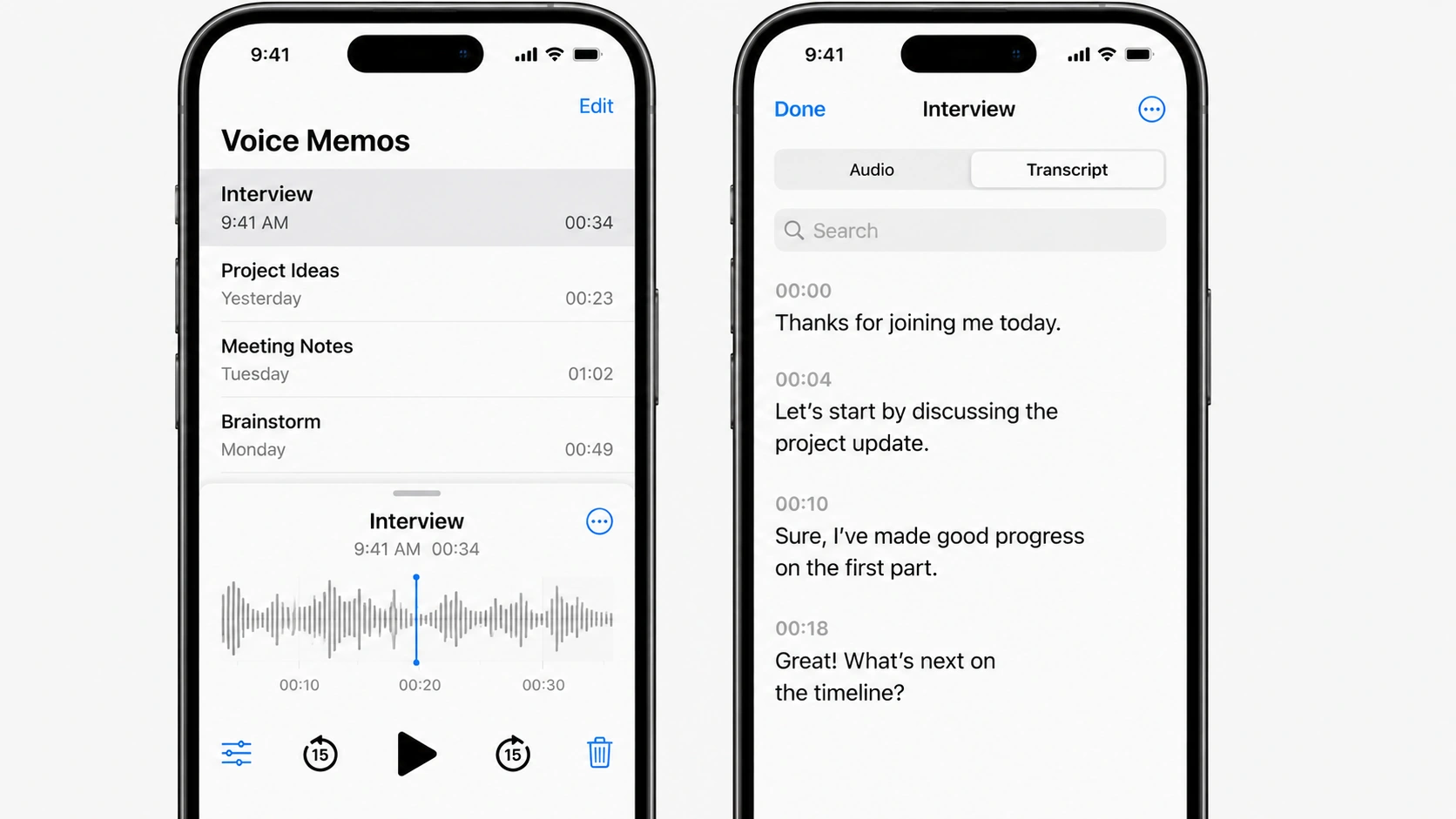
If you have an iPhone newer with iOS 17.4+, you can get transcription built right in. Availability can vary based on your device, iOS version, and the language used in the recording.
To see whether it is available:
- Open the Voice Memos app.
- Select the recording you want to view.
- Tap the memo or waveform to expand it.
- Look for a Transcript option.
- Open it to see the recording as text.
This can be convenient for short, personal recordings. However, built-in features may be less suitable when you need downloadable files, translation, detailed timestamps, content summary, or support for a wider range of languages.
How to Transcribe Voice Memos on Android
The exact steps depend on your Android phone and recorder app, but the general process is straightforward.
- Open your phone's voice recorder or recording app.
- Select the voice memo you want to transcribe.
- Save the file to your device.
- Visit a browser-based transcription service.
- Upload the recording.
- Review the generated text.
- Copy or download the transcript.
If you cannot find your recording, open your file manager and search for audio extensions such as M4A, MP3, or WAV.
How to Transcribe Voice Memos on Desktop
Desktop transcription is often easier when you need to review, edit, and organize a long recording.
On Mac
If your voice memo is synced to your Mac:
- Open the Voice Memos app.
- Select the recording.
- Drag it to your desktop, or use the Share option to save the file.
- Open a transcription service in your browser.
- Upload the audio file.
- Review and export the transcript.
On Windows
If you received an iPhone voice memo by email, iMessage export, cloud storage, or another app, save the file to your computer first.
- Save the recording locally.
- Upload the M4A, MP3, WAV, or other supported file to a web-based transcription service.
- Wait for the transcript to generate.
- Copy the text or export it in your preferred format.
An Easy Way to Transcribe Voice Memos Online
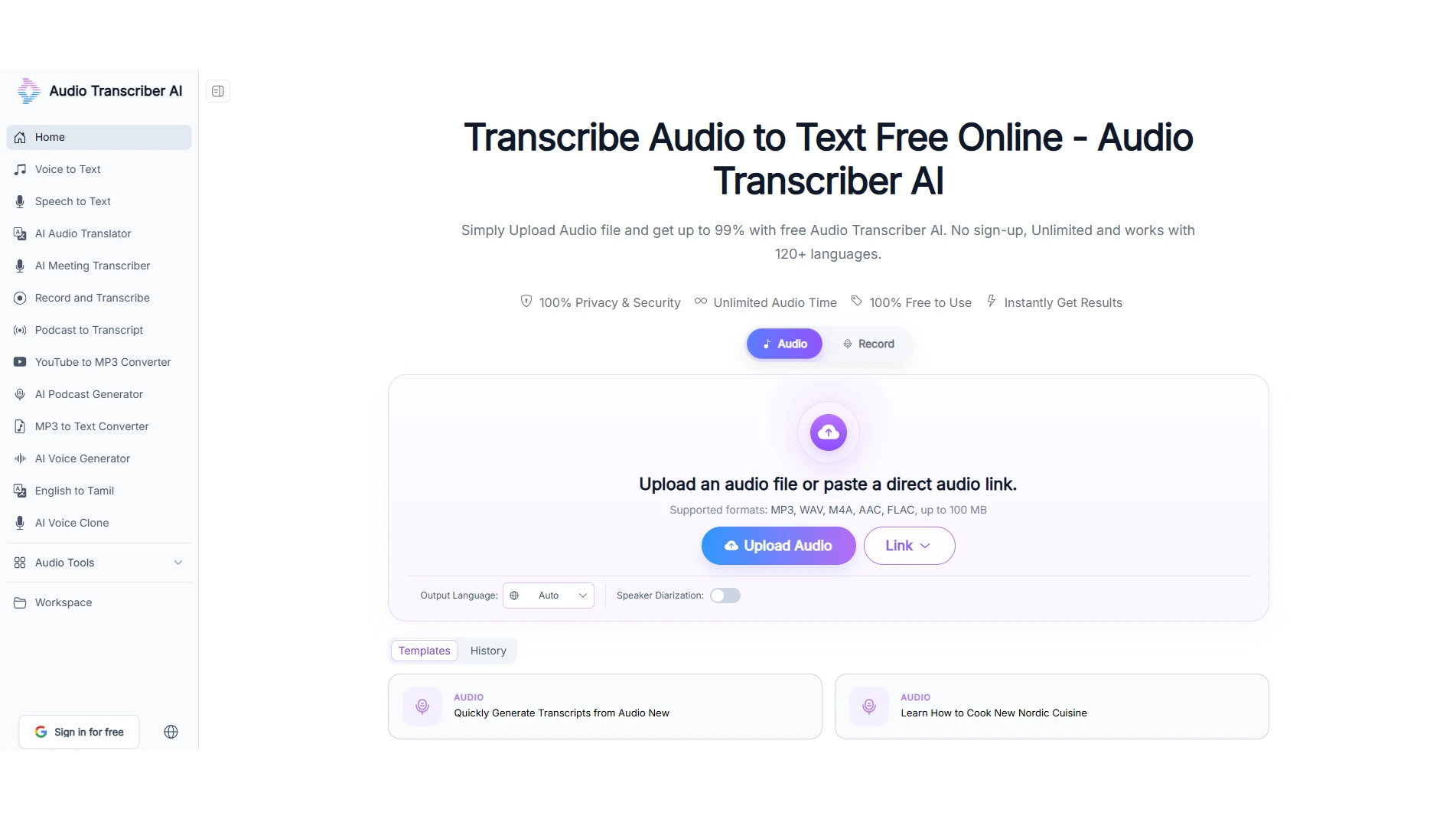
For most recordings, an online AI tool like Audio Transcriber AI is one of the quickest ways to transcribe a voice memo to text. It works with iPhone voice memos, Android recordings, interview files, meeting recordings, podcasts, and many common audio formats.
Step 1 Get your audio ready
If you recorded on your phone, export it: on iPhone, long-press the memo → Share → save to Files or AirDrop; on Android, share the recording and save it as .mp3.
If you don't have a file yet, skip this step and record fresh in Step 2.
Step 2 Upload or record
Upload the file or record in your browser. Some tools let you record and transcribe right in your browser—hit record, speak, and watch the text appear live. Use it for quick voice notes, draft dictation, or a call on speaker.
Step 3 Transcribe and export
Let the AI convert speech to text. Then export the result as TXT or Word.
How to Improve AI Voice Memo Transcription Accuracy
The accuracy of AI transcription depends largely on the quality of the original recording. A clear recording with one speaker, a quiet environment, and a natural speaking pace will generally produce better results than a noisy recording with multiple people speaking at the same time.
You can improve your transcription results with a few simple recording habits:
- Record in a quiet place when possible
- Keep the phone or microphone close to the speaker
- Avoid recording beside fans, keyboards, traffic, or loud music
- Ask people in a meeting to avoid speaking at the same time
- Speak clearly at a steady, natural pace
- Say names, dates, figures, and acronyms carefully
- Use an external microphone for important interviews
- Select the correct spoken language before processing the file
- Keep the original audio until you finish reviewing the transcript
- Use clear file names so you can find recordings later
For group interviews or meetings, it can also help to introduce the participants at the beginning. A brief introduction such as "This is the product feedback interview with Sarah and Daniel" can provide useful context when reviewing the transcript later. Even with a clear recording, AI-generated transcripts should be reviewed before you publish or share important content. Pay particular attention to names, figures, dates, technical terms, and direct quotes, and check them against the original audio when necessary.
When Should You Transcribe Voice Memos?
You do not need to transcribe every short reminder. But transcription becomes valuable when a recording contains information you may need again.
Meetings and follow-ups
Convert team discussions into a written record of decisions, next steps, deadlines, and responsibilities. Time-stamped transcripts are particularly helpful when someone wants to verify what was said.
Interviews and research
Writers, marketers, journalists, recruiters, and researchers can use transcripts to locate quotes, compare answers, and identify recurring themes without listening to every recording repeatedly.
Lectures and study notes
Students can turn class recordings into searchable study material. This makes it easier to revisit a definition, example, or explanation before an exam.
Content creation
A spoken idea can become a blog outline, newsletter draft, video script, podcast summary, social post, or creative brief. Many people find it faster to talk through an idea first and shape it into polished writing later.
Personal productivity
Voice memos are useful when typing is inconvenient. Transcribing them later helps turn scattered thoughts into notes, reminders, and organized tasks.
Manual vs. AI Voice Memo Transcription
Manual transcription still has a place, but it is not always the most efficient first step.
| Method | Best for | Advantage | Limitation |
|---|---|---|---|
| Manual transcription | Very sensitive or difficult recordings | Maximum human judgment | Slow and labor-intensive |
| Built-in phone transcription | Short personal notes | Fast and convenient | Features may be limited |
| Online AI transcription | Meetings, interviews, lectures, and voice notes | Fast, searchable, and scalable | Important content needs review |
| Professional human transcription | Legal or formal records | Human quality control | More expensive and slower |
Common Voice Memo Transcription Problems
My transcript has errors
First, confirm that the spoken language is correct. Then listen to the relevant part of the recording and fix names, jargon, numbers, and unclear phrases manually.
If the entire transcript is poor, check the original recording. Heavy noise, distant speakers, or overlapping voices may be the main issue. For future recordings, move closer to the speaker or use a better microphone.
My iPhone voice memo will not upload
Save the file fully to the Files app before uploading. If the file is still stored inside the Voice Memos app or being synced, it may not be available yet.
You should also check your connection, especially for long recordings. If uploading from a phone is difficult, transfer the audio file to a Mac or Windows computer and upload it from there.
My recording includes several speakers
Use a tool with speaker detection, then review the labels after processing. An AI transcription tool can automatically identify different speakers and create timestamped transcripts, helping clarify who said what and when.
For better results, ask participants to speak one at a time. Even the best transcription system has difficulty separating several voices that overlap heavily.
I need to transcribe a long voice memo
Long recordings are easier to manage when you use timestamps, descriptive file names, and clear folders. You can also divide especially long sessions by topic, date, client, or project.
Audio Transcriber AI supports large audio files and is designed for recordings such as meetings, interviews, lectures, and podcasts.
I need the transcript in another language
The best workflow is usually to transcribe the original spoken language first, then translate the completed transcript. This keeps a readable record of the source content and gives you a separate version for another audience.
Online transcription tools often support transcription in 120+ languages and transcript translation for multilingual use.
Frequently Asked Questions
Can I transcribe voice memos for free?
Yes. Depending on your device and language, you may have access to a built-in transcription option. You can also use an online tool such as Audio Transcriber AI, which does not require sign-up and supports common voice memo formats.
How do I transcribe a voice memo to text on iPhone?
Open Voice Memos, select the recording, tap the three-dot menu, and choose Share. Save the recording to Files, then upload the M4A file to an online transcription tool to generate text.
Can I transcribe an M4A voice memo?
Yes. M4A is a common format for recordings made with Apple Voice Memos. Audio Transcriber AI supports M4A files directly, along with MP3, WAV, AAC, FLAC, OGG, WMA, AIFF, and other formats.
Do I need to convert a voice memo to MP3 first?
Usually not. You can upload the original M4A voice memo directly. Keeping the original format saves time and can help preserve audio quality.
Can AI transcribe voice memos with multiple speakers?
Yes. Some tools can identify and label different speakers in interviews, meetings, and group discussions. Results are generally better when speakers take turns and the recording is clear.
How long does it take to transcribe a voice memo?
Processing time depends on the file length, size, audio quality, internet connection, and current demand. AI transcription is typically much faster than listening and typing every word manually.
Are voice memo transcripts private?
You should always check a transcription provider’s privacy policy before uploading sensitive content. Audio Transcriber AI states that uploaded data is permanently deleted after 24 hours, and the service does not require a login.