
Clideo Review 2026: Is This Online Video Editor Worth Using?
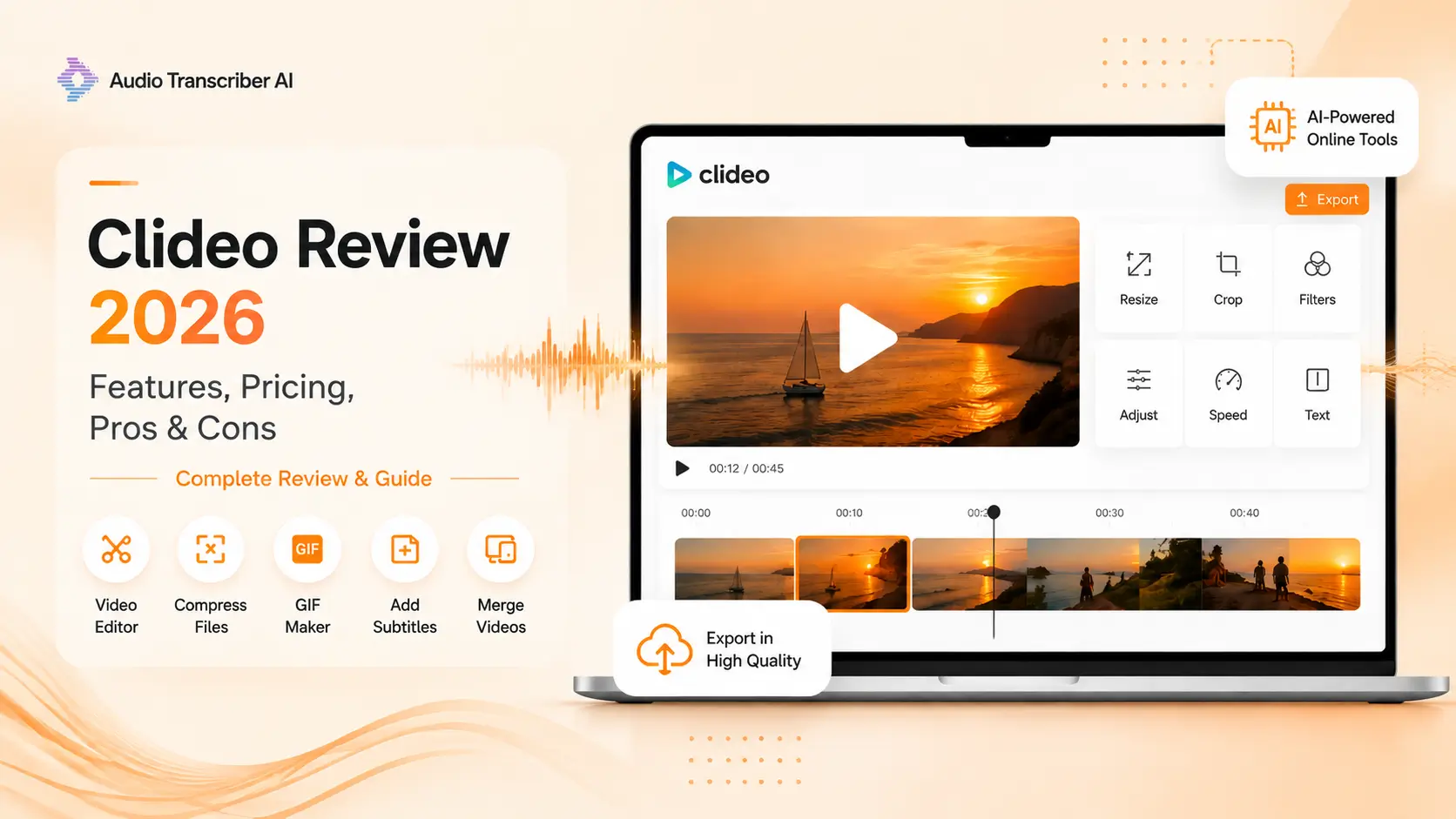
Trim a clip, resize it for TikTok, slap on some captions, or compress a file before sending it off — these are five-minute jobs. But firing up a full editing suite just for that feels like hauling out an entire toolbox to sew on a loose button.
That's the problem Clideo is trying to solve.
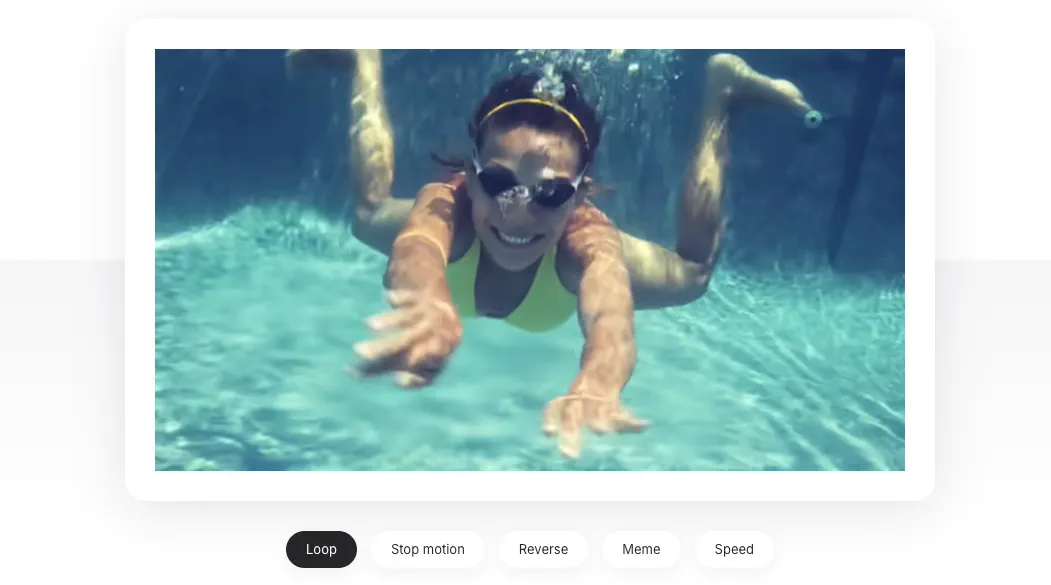
It's a browser-based suite for editing video, audio, and images — no software to install. Just open the site, upload your file, edit, and export.
But ease of use is only half the story. The free version slaps on a watermark and caps your export quality and file size. So is Clideo actually worth using, or is it just another "free" editor that quietly nudges you toward a paid subscription?
This review digs into the editing experience, features, pricing, limitations, security, and who actually gets the most value out of it.
Introduction to Clideo
Clideo is best described as a practical online media toolbox, built around a video editor that's surprisingly full-featured.
Its biggest selling point is simplicity. No bulky software to download, no complicated setup to wrestle with, no editing jargon to learn. The interface is built for people who just want to get one specific thing done, fast.
Here's what's currently on the platform:
- An all-in-one video editor
- Tools for compressing, trimming, cutting, and merging video
- Format conversion for video, audio, and images
- Screen, webcam, audio, and presentation recording
- Auto-captions and transcription
- Video and audio translation
- Text-to-speech (TTS)
- GIF and meme makers
That combination makes Clideo more flexible than a single-purpose compression tool, and a lot less intimidating than traditional desktop editing software.
Bottom line: Clideo is a solid pick for quick, lightweight video work. The free version is fine for testing things out or casual projects, but between the watermark and the 720p export cap, anyone publishing polished content will want to look at Clideo Pro instead.
What Is Clideo?
Clideo is an online platform for editing video, audio, and images right in your browser.
It's split into two parts: a full video editor with a canvas and multi-track timeline for combining video, images, text, and audio in one project, and a set of standalone tools for quick jobs — trimming, adjusting speed, compressing, converting formats — without opening the full editor.
That split is one of the smarter design choices here: the editor for full projects, the tools for one-off tasks, each doing what it's best at.
Everything runs online, so it works across Windows, macOS, Android, and iOS — a browser is really all you need.
What Are Main Features of Clideo?
Online Video Editor Tool
If your project pulls in a mix of media — video, images, audio — Clideo's editor is a decent place to start.
You can lay video, images, and audio out on a multi-track timeline, and add text, stickers, shapes, or GIFs on top. Individual clips can be trimmed, repositioned, sped up or slowed down, and adjusted for brightness and contrast.
It also supports picture-in-picture and split-screen layouts, which works well for reaction videos, interviews, product demos, tutorials, and before-and-after content.
It covers most everyday editing needs:
- Trim and rearrange clips
- Add music or voiceover
- Add text overlays
- Change playback speed
- Adjust volume
- Add transitions
- Change canvas aspect ratio
- Combine video, image, and audio files
- Add a custom watermark (paid plans)
It's obviously not a substitute for Premiere Pro, Final Cut Pro, or DaVinci Resolve — you won't find that level of color grading, keyframe animation, masking, audio mixing, or effects control here. But that's not what Clideo is going for.
Quick Video Tools
Clideo's mini-tools might actually be more useful than the main editor.
The site has separate pages for common tasks like:
- Compressing a video
- Merging multiple clips
- Cropping or resizing
- Cutting a video
- Muting or replacing audio
- Changing playback speed
- Rotating, flipping, or reversing
- Converting formats
- Making a GIF
- Adding subtitles
This task-based setup saves you some hassle — if all you need is compression, you don't have to build a timeline project or dig through features you'll never touch.
The catch: free users can't move seamlessly between tools. Under Clideo's current limits, "Continue in" is a premium-only feature, so free users have to export the result and re-upload it before running it through the next tool.
That gets tedious fast when a simple project needs three or four steps.
Stock Media and Creative Elements
The editor comes with a searchable stock library — video, images, audio, graphics. The video library is sorted into categories like nature, travel, food, people, animals, and backgrounds.
You can also throw in shapes, emojis, stickers, and preset text without having to source everything yourself.
That said, Clideo isn't really a template-driven design platform. Its strength is putting media together and editing it, not churning out full branded campaigns off a library of polished templates.
Subtitles, Transcription, and Translation Tools
Clideo goes beyond basic editing with a few extra tools:
- Auto-generated subtitles
- Video/audio-to-text conversion
- Video and audio translation
- Text-to-speech voiceovers
These run on a credit system. Free users get 10 credits a month, which — per the pricing page — works out to roughly 10 minutes of auto-captioning or translation. The Pro plan bumps that up to 500 credits a month, or about 500 minutes.
That's plenty if you're just testing on a few short clips, but it runs out fast if you're regularly working with interviews, webinars, podcasts, or longer videos.
Worth noting: auto-generated captions are best treated as a rough draft. Names, accents, technical jargon, overlapping speakers, or noisy audio will usually still need a manual pass to clean up.
Recording Tools
Clideo lets you record:
- Screen
- Webcam
- Audio
- Presentations
Free users are capped at 15 minutes per recording, while premium users can go up to 60 minutes.
That's enough for a short tutorial, product demo, feedback video, or classroom explainer, but it starts to feel tight for longer meetings, webinars, or podcasts.
Is Clideo Completely Free Use?
Yes, Clideo does offer a genuine free allowance. You can use the editor and its various tools without paying, and you can even try out some of them without signing up. However, there are certain limitations.
| Feature | Free | Clideo Pro |
|---|---|---|
| Watermark | Added to video and image exports | No watermark |
| Upload size | Up to 500 MB per file | Unlimited upload file size |
| Export quality | 480p or 720p | Up to 1080p and 4K |
| Processing priority | Standard | Highest |
| Cross-tool continuation | Not available | Available |
| Project storage | Pricing page lists 14 days | Unlimited storage period |
Pro removes the upload cap, but the free plan's biggest drawback is the watermark — every video or image you export gets a small Clideo logo in the bottom right corner.
Fine for personal drafts, schoolwork, or a quick one-off clip. Less fine for client work, ads, business social media, or a public channel, where it just looks unpolished.
The free plan works best as a way to test things out or handle casual edits — not as a real publishing solution.
What Is Clideo Pricing?
Clideo offers two subscription pricing options: a monthly plan and an annual plan. Honestly, the prices are quite reasonable.
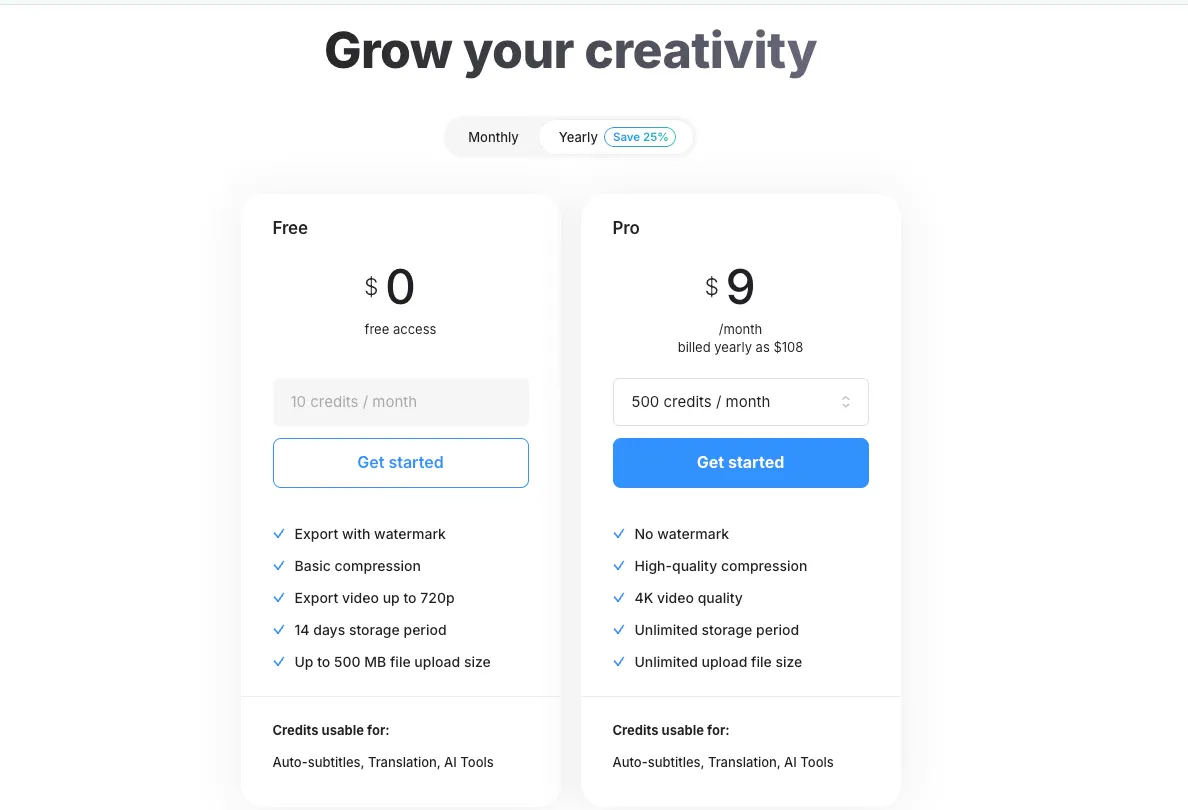
At the time of checking, Clideo displayed the following USD prices:
- Monthly: $12 per month
- Annual: $108 per year, equivalent to $9 per month
- Free: $0
Going annual saves 25% versus paying monthly for a year.
Clideo Pro removes the watermark and unlocks perks like higher-res exports, bigger upload limits, faster processing, longer recording times, more AI credits, and longer project storage.
Whether that's worth it comes down to how often you use it.
If you're only compressing or trimming a video every few months, Pro probably isn't worth it. But if you're posting content weekly and don't want to install dedicated editing software, the annual plan ($9/month) makes more sense.
Two billing details worth knowing: subscriptions auto-renew unless you cancel, and per Clideo's pricing FAQ, purchases generally aren't refundable — even if you forget to cancel and get charged again.
Before subscribing, try the free version on a real project first. And if you're not sure how much you'll actually use it long-term, start with a one-month subscription rather than committing to a year.
Clideo Pros and Cons
It does more than a basic converter — multi-track editing, stock library, recording, subtitles, AI tools — but it's easier to use than professional desktop software.
Unlike template-heavy creative platforms, Clideo is more task-focused. You use it to get something specific done — resize a video, merge clips, add subtitles, export a file — not to browse templates.
If you want quick, browser-based editing, Clideo works well. For heavy templates, complex animation, advanced color grading, or deep collaboration, look elsewhere.
What We Like
- Works directly in a browser
- No software installation required
- Clean interface with a gentle learning curve
- Large selection of focused mini-tools
- Multi-track editor for more complete projects
- Useful social media aspect-ratio presets
- Supports common video, audio, and image formats
- Includes recording, subtitle, translation, and TTS tools
- Can be tried for free
- Pro supports watermark-free 4K export
What Could Be Better
- Free exports include a Clideo watermark
- Free video resolution tops out at 720p
- Free uploads are limited to 500 MB
- AI features have monthly credit limits
- Free users cannot continue directly between mini-tools
- Large projects depend heavily on upload speed
- Advanced editing controls are limited
- Subscriptions renew automatically
- Refund policy is strict
Who Should Use Clideo?
Clideo is a strong option for:
- Beginners who want to edit without learning professional software
- Social media creators making short-form videos
- Marketers resizing content for different platforms
- Teachers and students creating simple presentations or lessons
- Small businesses producing occasional promotional clips
- Anyone who regularly compresses, converts, crops, or merges videos
- Users working on devices that cannot comfortably run desktop editing software
It is less suitable for:
- Professional film and video editors
- Creators who need advanced motion graphics
- Teams working with confidential footage
- Users editing hours of high-resolution media
- Anyone who requires unlimited free, watermark-free exports
- Editors who need detailed color, audio, masking, or animation controls
Final Verdict: Is Clideo Worth It?
Clideo works because it fits the size of the job.
Not every video needs a full editing suite. Sometimes you just need to trim it, resize it, add subtitles, and post — all in the browser.
The all-in-one editor is clean, and the standalone tools handle quick fixes fast. Auto subtitles, translation, recording, and text-to-speech push it past a basic trimmer or compressor.
The free version has real limits: a watermark, 720p export cap, 500MB upload limit, and limited AI credits. It's fine for testing or personal projects, not polished work.
For regular content creators who don't want desktop software, Pro is worth it — no watermark, plus 1080p or 4K export.
Is Clideo worth using? Yes — especially for beginners, quick edits, or lightweight social content. It's easy to use and covers everyday needs without the learning curve of pro software.
Frequently Asked Questions
Is Clideo really free?
Yes. Visitors and registered users can access Clideo for free, but exports include a watermark. Free users are also limited to files of up to 500 MB and video exports of up to 720p.
Does Clideo add a watermark?
Clideo adds a small watermark to video and image files exported by free users. An active Clideo Pro subscription is required for watermark-free exports.
Can Clideo export in 1080p or 4K?
Yes, but 1080p and 4K exports are premium features. Free users can currently export in 480p, 720p, or GIF format.
Is Clideo safe to use?
Clideo says it uses encrypted communications, GDPR-compliant infrastructure in Germany, and cloud providers with ISO 27001-certified data centers. Users handling sensitive material should still review its privacy policy before uploading files.
Can I use Clideo without creating an account?
Many Clideo tools can be used as a visitor. Creating a free account provides access to project storage and a limited monthly AI credit allowance.
Does Clideo work on mobile devices?
Yes. Clideo works in browsers on Android and iOS, as well as Windows and macOS. It also offers a dedicated iPhone app.
Is Clideo good for YouTube and TikTok?
Clideo is suitable for simple YouTube videos, Shorts, TikTok clips, Reels, and other social content. It includes presets for common platform aspect ratios. More advanced YouTube productions may require a professional editor.
Can I cancel Clideo Pro?
Yes. Clideo says users can cancel through their account and retain premium access until the end of the paid period. The subscription otherwise renews automatically.